

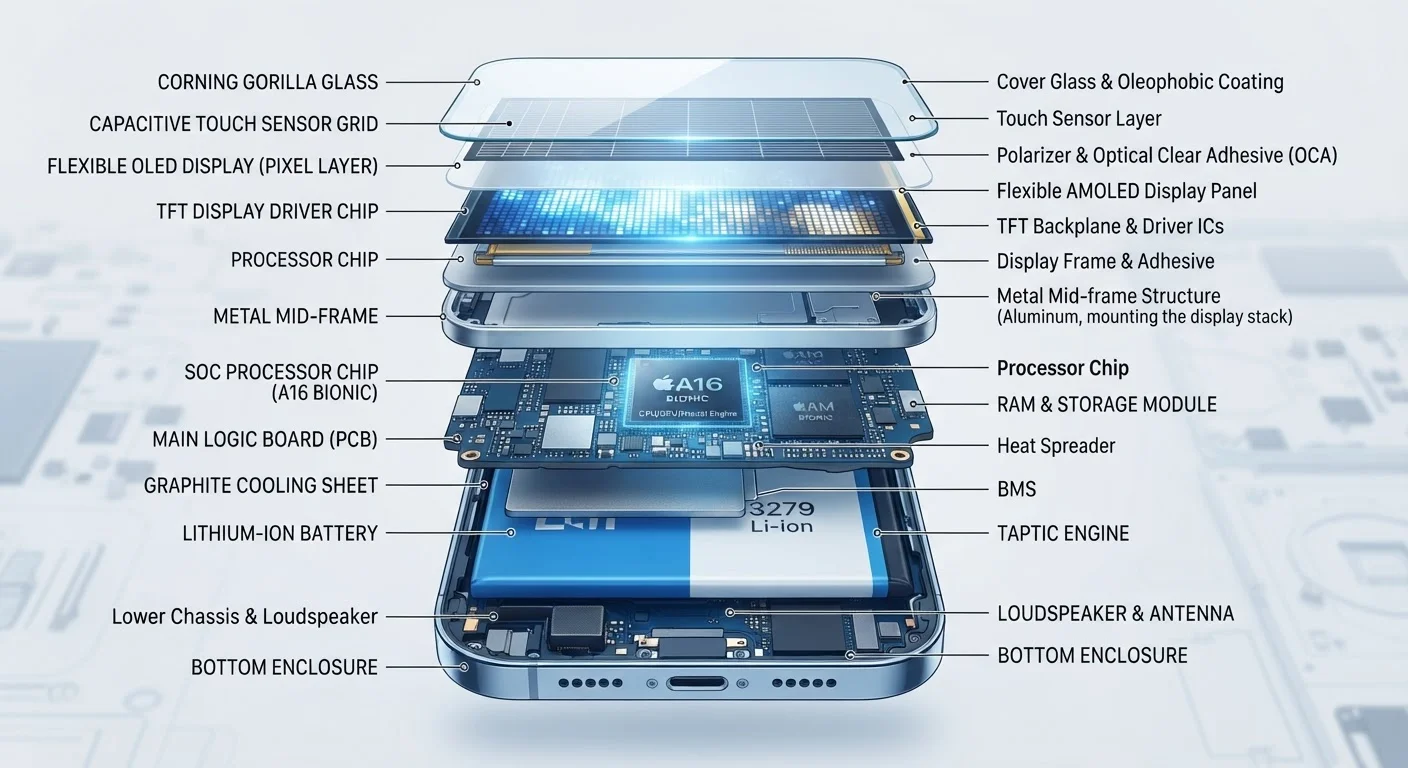
Key Takeaways
Capacitive Touchscreen
A capacitive touchscreen is the glass surface on your smartphone that detects your touch using tiny electrical fields. Your fingertip conducts electricity, and when it touches the screen, it disturbs that field at a specific location. The phone uses that disturbance to figure out precisely where you tapped.
Modern smartphones use projected capacitive technology (PCAP), which allows multi-touch input by measuring changes across a grid of transparent electrodes embedded beneath the glass.
Step One: Your Finger Meets the Glass
The moment your fingertip contacts the screen, something invisible happens. Beneath the glass sits a transparent grid of electrodes carrying a weak electrical charge. Your skin is conductive, so when you touch the surface, you draw a tiny amount of that charge toward your fingertip - creating a measurable disturbance at a specific point on the grid.
The touchscreen controller - a dedicated chip bonded to the screen assembly - scans this grid continuously, checking for disturbances. It pinpoints the coordinates of your tap: an X position and a Y position. If you're using two fingers simultaneously, it tracks both contact points independently. This raw positional data is then handed off to the next layer of the system.
Stylus and Glove Inputs Work Differently
Active styluses (like those used with some tablets) don't rely on the capacitive effect at all - they communicate electronically with a separate digitizer layer in the screen. Resistive touchscreens, found on some older or industrial devices, work by physical pressure rather than electrical conductivity, which is why they respond to any object, including gloved fingers.
Step Two: The Processor Takes Over
The touch coordinates travel from the screen controller to the phone's main processor - the SoC, or System on a Chip, which bundles the central processing unit, graphics processor, and other components on a single piece of silicon. For a deeper look at what the processor is actually doing at this stage, see our guide to what a CPU does all day.
The processor passes those coordinates to the operating system, which is the software layer managing everything running on your phone. The OS checks what's currently displayed at those screen coordinates - which app, which button, which region of the interface - and determines what action should follow. This matching of position to intent is called hit testing.
10-100ms
Typical tap-to-response latency
Industry benchmarks for modern smartphones place end-to-end touch latency - from screen contact to visual feedback - in this range, with premium devices trending toward the lower end.
240Hz
Maximum touch sampling rate on some phones
Some flagship smartphones poll their touchscreens up to 240 times per second, reducing the delay between a user's movement and the phone detecting it.
Millions
Transistors in a smartphone SoC
Modern smartphone processors (SoCs) contain billions of transistors on a chip roughly the size of a thumbnail, enabling the rapid calculations needed to process touch input.
Step Three: The App Responds
Once the OS identifies the target, it sends an event notification to the relevant app. The app's own code then handles what to do - opening a menu, submitting a form, playing a video, or something else entirely. If you're tapping a button inside an app, the app confirms the tap, triggers its internal logic, and prepares a visual update.
This is also the point where app permissions become relevant. If your tap triggers a feature that requires access to your camera, microphone, or contacts, the OS may interrupt to ask for approval. To understand what those requests actually mean, see our article on what app permissions actually mean.
Keep Your Screen Clean for Better Accuracy
Oils, moisture, and debris on the screen surface can interfere with the capacitive sensor grid, leading to missed taps or imprecise detection. A quick wipe with a dry microfiber cloth keeps the electrode grid reading your input cleanly. Avoid abrasive materials that could scratch the oleophobic coating that helps repel fingerprints.
Step Four: The Screen Updates
The final step is what you see: the display changes to reflect the result of your tap. The graphics processor renders the new visual state - shifting colors, highlighting a button, loading a new screen - and pushes those updates to the display panel pixel by pixel. Each pixel on an OLED or LCD screen is individually addressed and told what color and brightness to show.
How quickly and smoothly this update appears depends on the screen's refresh rate - measured in hertz (Hz). A 60 Hz display redraws the screen 60 times per second; a 120 Hz display does so twice as fast, making motion look noticeably smoother. For a full breakdown of screen terminology, see our screen glossary for non-engineers.
The entire sequence - from your fingertip touching glass to the display updating - typically completes in well under a tenth of a second. That speed is the result of multiple purpose-built hardware components working in tight coordination, each handing off a specific task to the next.