Key Takeaways
App Permissions
App permissions are formal requests an app makes to access specific features or data on your device - such as your camera, microphone, contacts, or location. Your phone's operating system (iOS or Android) acts as a gatekeeper, showing you the request and waiting for your approval before granting access. You have the right to grant, deny, or revoke any permission at any time.
Permissions are enforced at the operating system level, meaning an app cannot bypass a denial by going around the OS - though it can request access again the next time you open it.
Why Your Phone Asks Before Letting Apps In
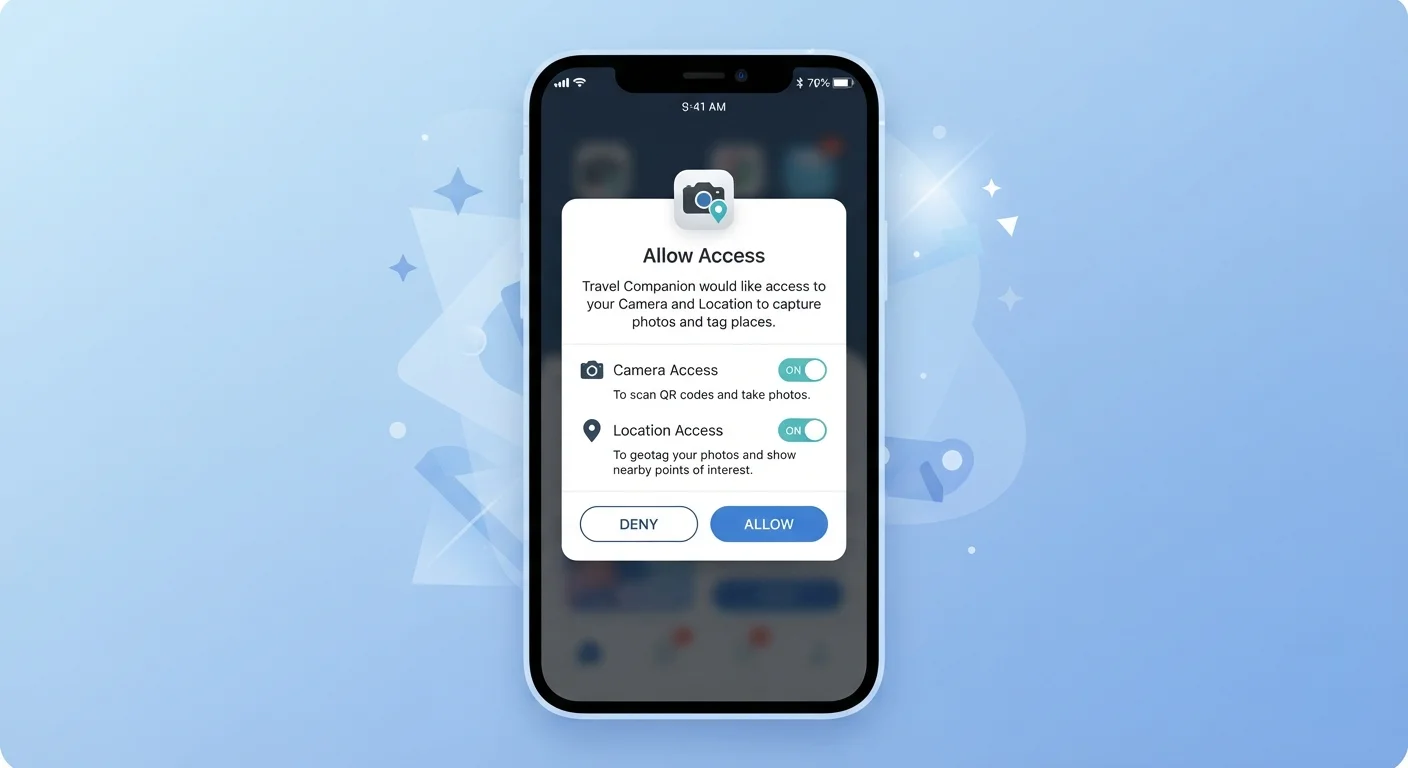
When you install a new app and open it for the first time, a dialog often appears: "Allow this app to access your location?" or "Can we use your microphone?" These prompts aren't formalities - they are your operating system enforcing a boundary on your behalf.
Before smartphones, software could access most of a computer's resources freely. Mobile operating systems changed that model deliberately. iOS and Android were designed with a "sandbox" approach: each app runs in its own contained environment and must ask explicitly before reaching outside that boundary to touch your data or hardware.
That means the permission prompt you see is a genuine checkpoint. The app has declared what it wants; the OS relays that request to you; and nothing happens until you decide. Understanding what each category of permission actually touches helps you make that decision with confidence.
Permissions Apply to Both New and Existing Apps
You don't only encounter permission prompts when an app is first installed. Apps can request new permissions after an update, or prompt you again if you previously denied access and they still want it. Your phone's settings always show the current status, regardless of when the permission was originally requested or granted.
The Most Common Permission Categories - Explained
Permission labels can sound clinical. Here's what they mean in plain terms:
- Location: Access to your GPS coordinates. Apps can request this "always" (even when closed), "while in use" (only when you're actively using the app), or not at all. Maps and navigation apps need this; most others don't.
- Camera: The ability to activate your phone's camera hardware. Required for apps that let you take photos or scan QR codes; rarely justified for apps that have no visual function.
- Microphone: Access to live audio input. Voice assistants, video calling, and voice-to-text tools need this. A game or shopping app generally does not.
- Contacts: Your address book - names, phone numbers, email addresses. Messaging apps use this to find people you know. Be cautious: sharing your contacts means sharing other people's information too.
- Photos / Media: Access to images and videos stored on your device. A photo-editing app needs this; a calculator does not.
- Notifications: The ability to send you alerts and badges. This affects convenience more than privacy, but excessive notifications can be manipulative - especially in apps designed to keep you engaged.
45%
Apps requesting location access unnecessarily
A study by the International Computer Science Institute found that a significant share of Android apps collected location data beyond what their features required.
2 in 3
Smartphone users who rarely check app permissions
Research from Pew Research Center has found that most smartphone users have not reviewed their app permission settings in the past year.
When a Permission Request Should Raise a Flag
The key question to ask about any permission request is: Does this app genuinely need this to do what it promises? The answer is often straightforward.
A navigation app asking for location access makes sense. A wallpaper app asking for your contacts does not. A video-calling app asking for the microphone is expected. A recipe app asking to always track your location is not.
This mismatch between an app's stated purpose and its permission requests is one of the clearest signals that something is off. Apps sometimes collect data to sell to advertisers or data brokers - and permissions are the mechanism that makes that collection possible. Learn the broader warning signs that an app may be overstepping what it claims to do.
Default to the Most Restrictive Option First
When in doubt, choose the least permissive setting available - such as 'while in use' instead of 'always' for location, or 'selected photos' instead of 'all photos.' You can always loosen a restriction later if the app genuinely needs it. It's much harder to reclaim data that's already been shared.
How to Review and Manage Permissions You've Already Granted
Granting a permission isn't permanent. Both major mobile platforms make it straightforward to review and change what each app can access.
On iPhone: Go to Settings > Privacy & Security. Each category (Location Services, Camera, Microphone, etc.) shows every app that has requested that permission, along with your current setting. You can adjust any of them individually.
On Android: Go to Settings > Apps, select an app, then tap Permissions. Alternatively, go to Settings > Privacy > Permission Manager to browse by category across all apps.
A useful habit is to do a permission audit every few months - especially after installing new apps or after an app update. Updates can sometimes change what an app requests, so it's worth rechecking after major updates. Revoking a permission you don't recognize or no longer need is a low-effort way to meaningfully reduce your exposure.