

Key Takeaways
Option A
HTTP
The original, unencrypted web protocol.
Best for: Understanding the baseline - though it is no longer considered safe for transmitting any sensitive information.
Option B
HTTPS
The encrypted, privacy-protecting standard for the modern web.
Best for: Any site where data is exchanged - login credentials, payment details, or personal information.
If you're entering a password, payment details, or personal data
HTTPS
HTTP transmits your input as readable plain text, making it trivially easy to intercept. Always confirm HTTPS before submitting sensitive information.
If you're reading a purely informational article with no login or forms
HTTPS
Even for read-only browsing, HTTPS prevents third parties from seeing which pages you visit or injecting unwanted content into the page.
If you see a padlock but the site looks suspicious
Neither - verify the site first
HTTPS confirms the connection is encrypted, not that the operator is honest. Check the full domain name carefully and look for other trust signals.
What HTTP and HTTPS Actually Do
HTTP stands for HyperText Transfer Protocol - the set of rules that governs how data travels between your browser and a web server. When you type a web address and press Enter, your browser and the server exchange messages using these rules. The core problem with HTTP is that those messages are sent as plain, readable text. Anyone positioned between you and the server - on the same Wi-Fi network, at your internet provider, or at certain network junctions - could, in principle, read them.
HTTPS adds a critical layer: the "S" stands for Secure. It wraps the same HTTP communication in a technology called TLS (Transport Layer Security, formerly known as SSL). TLS encrypts the data before it leaves your device and decrypts it only once it reaches the intended server. To anyone intercepting the traffic in between, the data appears as meaningless scrambled characters. This matters enormously for anything involving passwords, payment details, or personal forms. See how encryption-in-transit compares to other protections in our guide to public Wi-Fi risks.
| Criterion | HTTP | HTTPS |
|---|---|---|
| Data encryption | None - plain text | Yes - via TLS encryption |
| Padlock in browser | No - often flagged as "Not Secure" | Yes |
| Protects login credentials | No | Yes, in transit |
| Guarantees site is trustworthy | No | No |
| Protects data stored on servers | No | No |
| Required for e-commerce and forms | No, but unsafe to use | Yes - industry standard |
| Certificate required | No | Yes - free or paid TLS certificate |
What the Padlock Icon Actually Means - and What It Doesn't
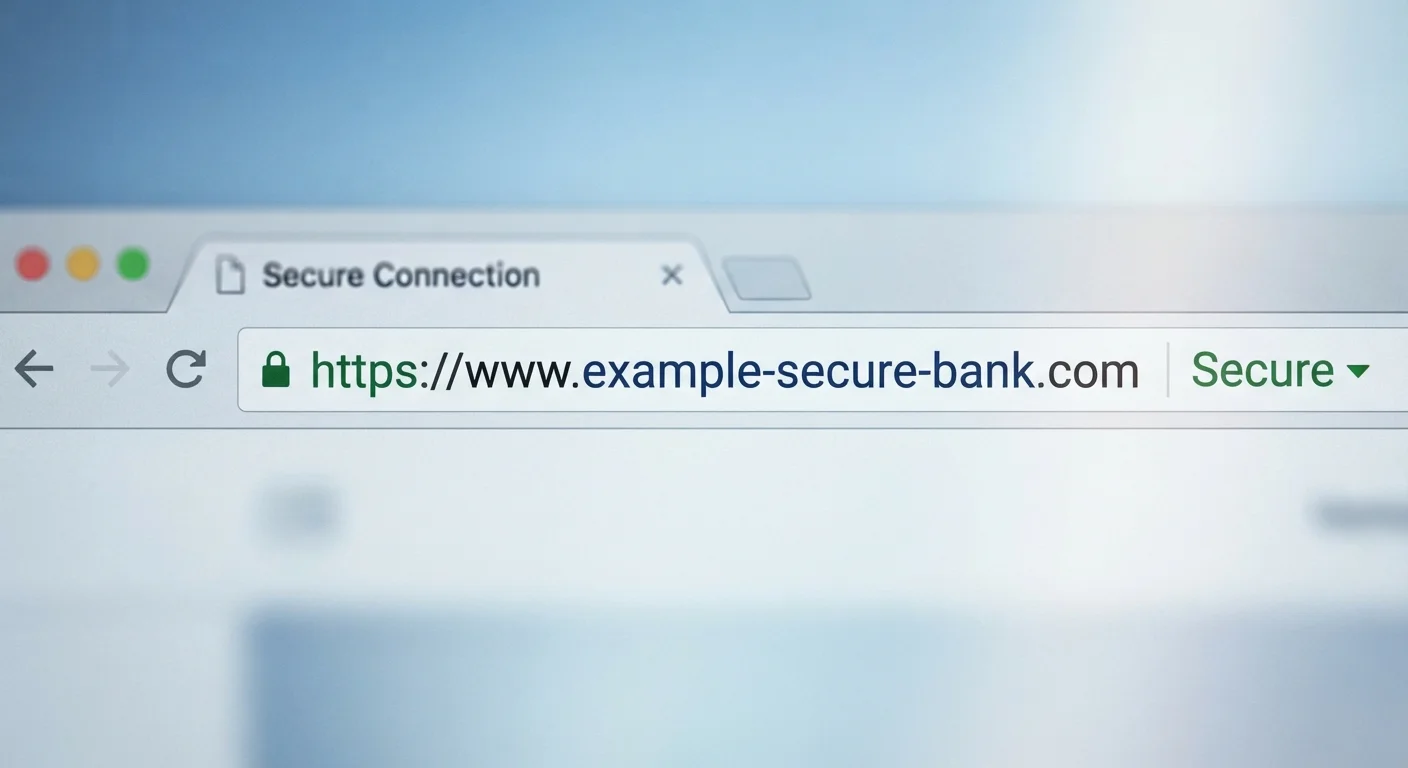
Modern browsers display a padlock icon when a site uses HTTPS. That icon has one specific meaning: your connection to this server is encrypted. It does not mean the site is safe, legitimate, or run by who it claims to be.
This distinction matters because fraudulent sites can - and do - obtain valid HTTPS certificates. Acquiring a basic certificate is free and takes minutes through services like Let's Encrypt. A phishing page designed to steal your banking credentials can display a padlock just as legitimately as your actual bank's website. The certificate authority that issues the certificate verifies that the applicant controls the domain; it does not investigate whether the domain is deceptive.
How to Read a Domain Name Carefully
Fraudulent sites often use domains that closely mimic legitimate ones - substituting a letter, adding a word, or using a different extension (e.g., .net instead of .com). Before entering any sensitive information, read the domain name from right to left, starting after "https://" and stopping at the first forward slash. The segment immediately before the first slash is the actual domain you're connected to. If anything looks unfamiliar or slightly off, navigate directly to the site by typing the known address rather than following a link.
In short: the padlock tells you your connection is private. You still need to verify that you're connected to the right place. Always check the full domain name in the address bar - not just the padlock - before entering any credentials. For a broader look at account security beyond the URL bar, see why strong passwords still get compromised.
The Real Limits of HTTPS
HTTPS protects data in transit - while it's traveling between your device and the server. Once your data arrives at the server, HTTPS has done its job. What happens to that data afterward - how it's stored, who can access it, whether the company suffers a data breach - is entirely outside HTTPS's scope.
~85%
Web traffic now using HTTPS
Google's Transparency Report has consistently shown the large majority of pages loaded in Chrome are served over HTTPS.
Free
Cost of a basic TLS certificate
Let's Encrypt, a nonprofit certificate authority, issues domain-validated certificates at no cost, making HTTPS accessible to any website operator.
This is why HTTPS is one layer of protection, not a complete security solution. Pairing it with strong, unique passwords and multi-factor authentication significantly reduces risk. Our article on two-factor authentication tradeoffs explains which second-factor methods offer the strongest protection. Similarly, understanding what incognito mode and VPNs actually hide helps clarify where HTTPS ends and other tools begin.
It's also worth noting that HTTPS does not hide which website you're visiting from your internet service provider - only the specific page content and data you submit. Your ISP can still see that you connected to a domain, even if it cannot read what you typed there.