

Key Takeaways
Why Default Settings Rarely Favor Your Privacy
When you install a new app, it arrives pre-configured - and those defaults almost never lean toward privacy. Developers make reasonable-sounding arguments for broad data access (better recommendations, smoother features), but the practical result is that most people share far more than they realize without ever making a conscious decision about it.
The good news is that the settings exist. They're just not prominently advertised. The list below covers the most commonly overlooked privacy controls across the kinds of everyday apps Americans use most - social media, messaging, browsers, and phone-level settings. Understanding what app permissions actually control is a useful foundation before diving in.
Location access set to 'Always' instead of 'While Using'
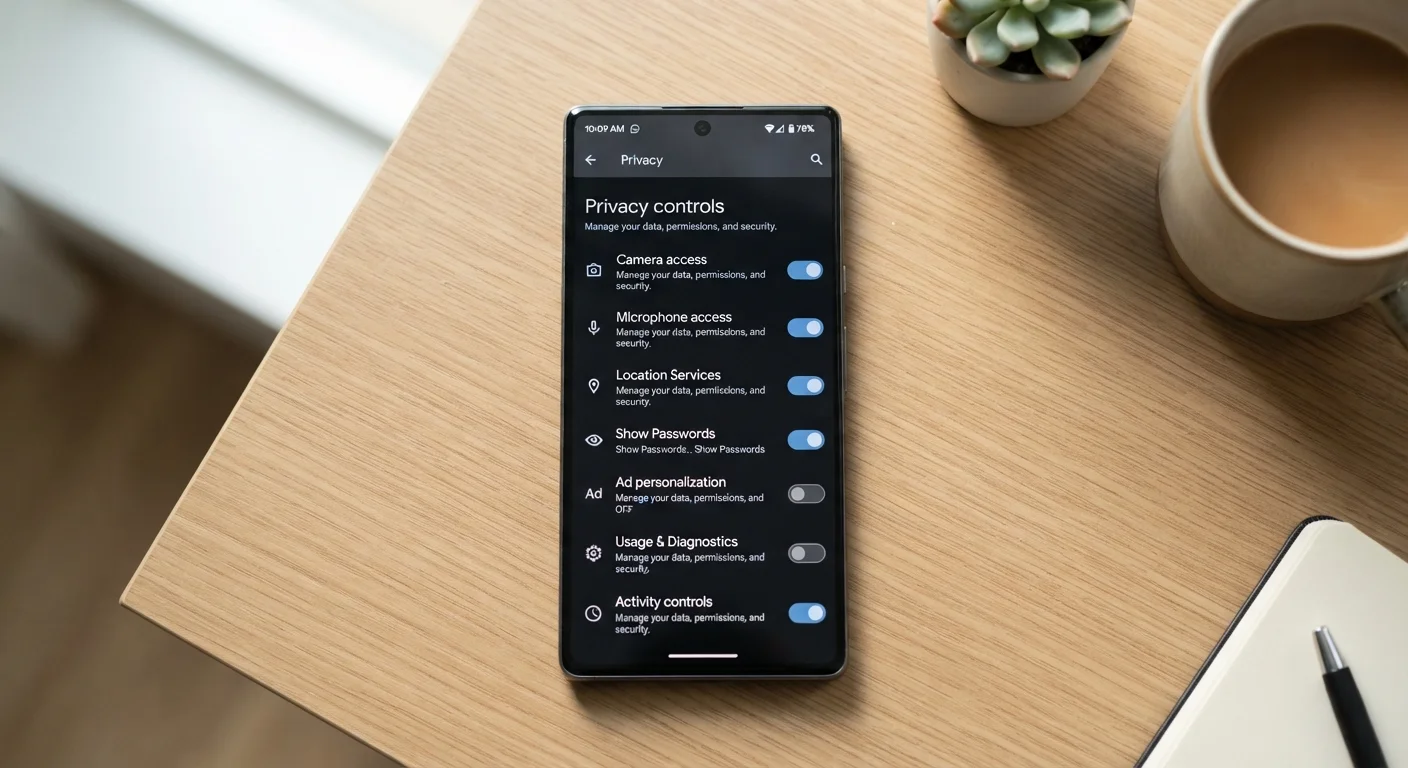
Many apps request continuous background location access when they only need your location while you're actively using them. A navigation app needs your location open - a weather app typically does not need it running overnight. On both iPhone and Android, you can set each app's location permission to "While Using the App" or even "Ask Every Time" rather than "Always."
Check this under Settings > Privacy & Security > Location Services (iPhone) or Settings > Location > App Permissions (Android). You may be surprised how many apps quietly have "Always" enabled.
Background location access is one of the most quietly intrusive permissions apps can hold.
Ad personalization and tracking across apps
Both Apple and Google provide system-level controls to limit how apps track you for advertising purposes. On iPhone, this is called App Tracking Transparency - under Settings > Privacy & Security > Tracking, you can see which apps have requested permission to track you and revoke any you've granted. On Android, you can opt out of ads personalization under Settings > Google > Ads.
Within individual apps - particularly social media platforms - look for a separate "Ad preferences" or "Data used to show ads" section. These are almost always buried several menus deep and default to the most permissive option.
Ad tracking controls exist at both the system level and inside individual apps - check both.
Contact list and microphone access for apps that don't need them
It's common for apps to request access to your contacts or microphone during setup, and easy to approve without thinking. Fitness apps, retail apps, and games rarely have a legitimate reason to read your contact list or activate your microphone. Granting access anyway means that data is potentially available to the app developer and any third-party SDKs (software packages) bundled inside the app.
Review these under your phone's app permissions settings and revoke access for any app where the connection isn't obvious. If the app still functions normally without it, the permission was likely unnecessary. The broader picture of signs an app may be overreaching is worth understanding here.
If an app works fine after you revoke a permission, that permission probably wasn't necessary.
Activity data shared with third parties inside social media apps
Major social platforms collect data about how you interact with content - what you pause on, what you search, how long you view a post. Much of this is used internally, but many platforms also allow third-party advertisers and partners to access behavioral or demographic data derived from your activity.
Look for settings labeled "Your activity off [Platform]", "Off-platform data", or "Data shared with partners." Some platforms let you view and clear this off-platform activity history. This won't stop data collection entirely, but it limits the profile advertisers can build from your browsing history elsewhere on the web.
Social platforms often track your activity on other websites and link it back to your profile.
Browser settings for cookies and cross-site tracking
Browsers ship with varying defaults for third-party cookie handling and cross-site tracking protection. Even privacy-conscious users often leave their browser's built-in protections at the default level without realizing stronger options exist in the settings.
In most major browsers, look under Privacy and Security (or similar) for options like Enhanced Tracking Protection, Block third-party cookies, or Prevent cross-site tracking. Enabling stricter settings may occasionally break a login on an older website, but the tradeoff is typically worth it. Pair this with reviewing which browser extensions have access to all your browsing data - extensions can be as intrusive as apps.
Browser tracking protections often exist but default to a lighter level than what's available.
Notification settings that reveal sensitive content on your lock screen
By default, many messaging and email apps display message previews directly on your lock screen - visible to anyone who glances at your phone. If a message contains a confirmation code, a private conversation, or financial information, that's a meaningful exposure risk in public spaces.
Under each app's notification settings, look for a "Show Previews" option and set it to "When Unlocked" or "Never." You can also set this globally on your phone for all apps at once. You'll still receive notifications and see the sender's name; the message content just won't appear until you've authenticated.
Message previews on a lock screen are visible to anyone nearby - a simple change removes that risk.
Making These Changes Stick
Adjusting these settings once is a solid start, but apps update frequently - and updates can quietly reset preferences or introduce new data-sharing options. Building a habit of checking your privacy settings every few months is more protective than any single audit. For a structured approach, the personal data security audit checklist walks through accounts, devices, and sharing habits in one place.
None of these changes require technical expertise. They require only a few minutes and a willingness to explore menus you've probably scrolled past before.
Schedule a Quarterly Privacy Check-In
Set a recurring reminder every three months to revisit your app permissions and privacy settings. App updates, new installations, and platform policy changes can all shift what's being shared. A quick 15-minute review is enough to catch anything that's drifted. Your phone's built-in privacy dashboard (available on both iPhone and Android) gives a summary of recent permission usage - a useful starting point.