Key Takeaways
Option A
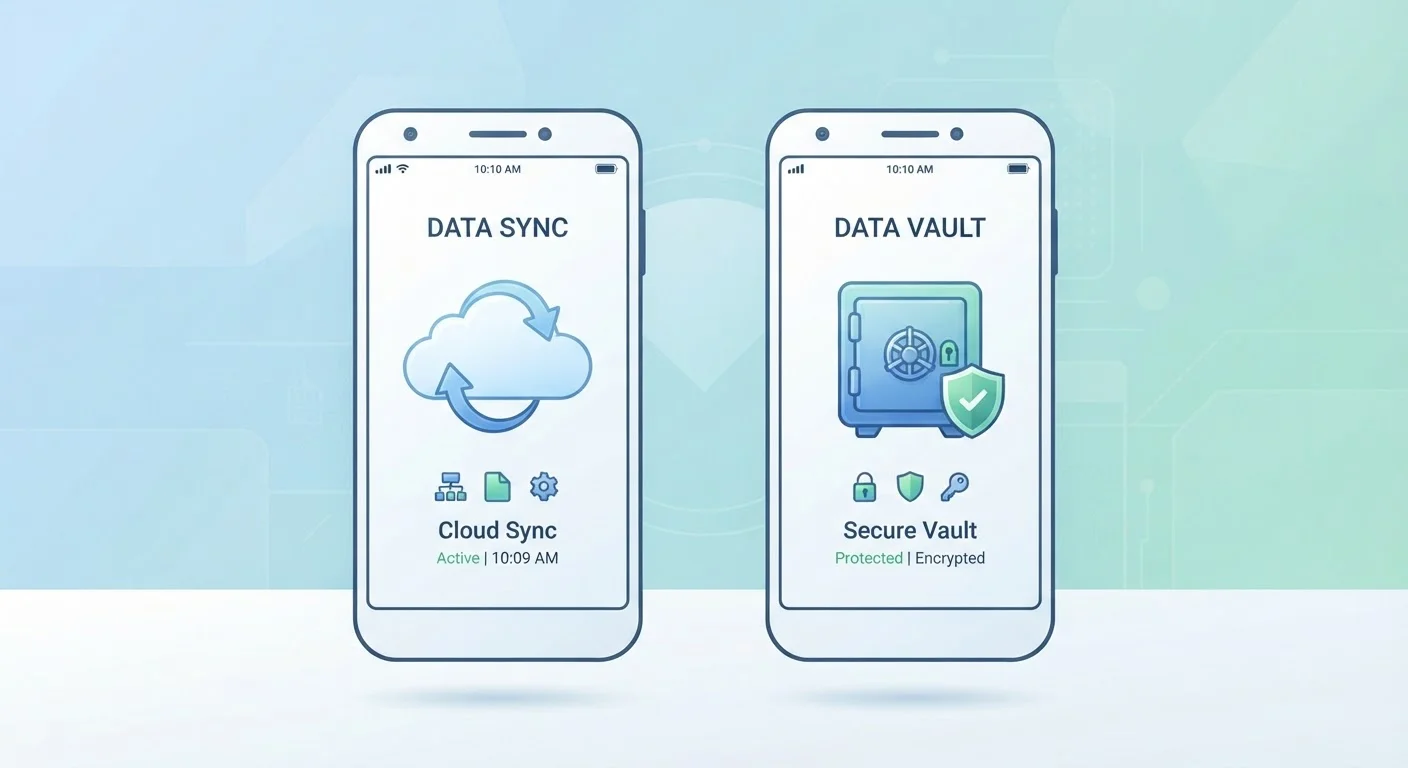
Syncing
The real-time mirror that keeps devices in step.
Best for: People who switch between multiple devices and want their photos, contacts, or files to appear everywhere automatically.
Option B
Backing Up
The safety net that preserves a snapshot in time.
Best for: Anyone who wants to recover their data after a lost phone, accidental deletion, or device failure.
If you work across a phone, tablet, and laptop and want everything in one place
Syncing
Syncing keeps your notes, contacts, and calendar consistent across every device without any manual effort.
If you want to recover data after accidental deletion or a broken phone
Backing Up
Only a backup can restore files to an earlier state - syncing will have already spread the deletion to all your devices.
If you want complete protection for your phone's data
Syncing
Use both - syncing handles convenience while regular backups give you a recoverable history if something goes wrong.
Why the Distinction Actually Matters
Most people assume that if their phone is connected to the cloud, their data is safe. That assumption can lead to a painful surprise. Syncing and backing up are genuinely different processes, and understanding the gap between them can determine whether you recover smoothly from a problem - or lose your data for good.
Think of syncing as a live mirror. When you take a photo, it appears on your tablet. When you update a contact, that change shows up on your laptop. Convenient? Absolutely. But a mirror reflects everything, including mistakes. Delete a file on one device, and that deletion syncs across all of them.
A backup, by contrast, is more like a photograph of your data taken at a specific moment. It doesn't update automatically with every change - instead, it preserves a recoverable version you can return to. If something goes wrong, a backup is what lets you rewind. Cleaning up an overcrowded phone is a lot less stressful when you know a solid backup is in place before you start deleting.
| Criterion | Syncing | Backing Up |
|---|---|---|
| Primary purpose | Keep devices in step | Preserve data at a point in time |
| Updates in real time | Yes | No - runs on a schedule or manually |
| Deletions are mirrored | Yes - deletions spread everywhere | No - earlier versions can be restored |
| Recovers from accidental loss | Rarely - no older version saved | Yes - restores from saved snapshot |
| Requires internet connection | Yes, constantly | Only during the backup process |
| Best analogy | A live mirror | A photograph of your data |
How Each One Works Under the Hood
Syncing works by continuously watching for changes and pushing them to a central server - usually a cloud service - which then pushes those changes to all connected devices. This happens almost instantly and requires an active internet connection. Common examples include contacts syncing through your phone's account settings, or documents updating across devices via cloud storage services.
The critical detail: the cloud storage used for syncing is not a backup service. It holds the most current version of your files. If you overwrite or delete something, that change becomes the current version and the old one is gone - sometimes immediately, sometimes after a short recovery window depending on the service.
Backing up typically works differently. Whether you use your phone's built-in backup feature, a computer, or a dedicated cloud backup service, the process saves a snapshot of your data - apps, settings, messages, photos - at that point in time. Many backup systems also retain multiple versions, so you can go back further than just the most recent save.
30%
Adults who have lost data permanently
Various surveys on consumer data loss suggest roughly 3 in 10 people have experienced permanent loss of digital files at some point.
1 in 3
Smartphone users with no regular backup
Industry research consistently finds a significant portion of smartphone owners do not have an active, automatic backup configured.
Understanding where your phone stores data in the first place also helps here. RAM and storage work very differently, and it's your phone's storage - not its RAM - that holds the files a backup is designed to protect.
Common Misconceptions and Real Scenarios
The most common mistake people make is assuming their synced cloud account is a backup. It is not. If you accidentally delete your entire photo library and it syncs, those photos are gone from the cloud too. Some services offer a brief undo window - often 30 days - but that's not the same as a reliable, versioned backup.
Another misconception: that backups are something only technical people need to manage. In reality, most phones make it straightforward. Both major mobile operating systems include a built-in backup option in their settings menus that can run automatically over Wi-Fi. Turning it on requires only a few taps.
Check Your Backup - Don't Just Set It
Enabling automatic backup is a great start, but it's worth occasionally verifying that the backup actually ran and is current. Some backups stop quietly if storage is full or if you've been offline for a long time. Check your phone's backup settings every few months to confirm the date of your most recent backup and that it completed successfully.
It's also worth being thoughtful about what apps have access to in the first place. Understanding app permissions helps you know which apps can reach your photos, contacts, and files - and why controlling that matters alongside any sync or backup strategy. For a broader look at keeping your accounts protected, securing your accounts across all your apps is a natural next step.