Key Takeaways
Start here
What Productivity Apps Actually Do
Next
The Three Categories Worth Knowing
Then
How to Choose Your First App
When you're ready
Building a Habit Around the App
Watch out for
Common Pitfalls for Beginners
What Productivity Apps Actually Do
A productivity app is any software designed to help you organize your time, tasks, or information more effectively. That's a broad definition on purpose - it covers everything from a simple shopping list to a full project management system.
The core idea is straightforward: instead of keeping everything in your head, or scattered across sticky notes and paper scraps, you move it somewhere structured. The app holds the information, surfaces it when you need it, and - ideally - makes it easier to follow through.
Before downloading anything new, it's worth knowing that you may already have capable tools available. See our overview of built-in software on your devices for a tour of what's hiding in plain sight.
The Three Categories Worth Knowing
Productivity apps generally fall into three practical categories. Understanding these helps you identify what you actually need rather than downloading apps at random.
Task Management
These apps hold your to-do lists. You add tasks, optionally set due dates, and check them off when done. They range from extremely simple (one list, no extras) to sophisticated systems with priorities, sub-tasks, and team collaboration. For a beginner, simpler is almost always better.
Note-Taking
Note-taking apps are flexible spaces for capturing ideas, research, meeting notes, or anything you want to remember. Think of them as a searchable digital notebook. Unlike task managers, they don't necessarily push you toward completing anything - they just store and organize information.
Calendar and Scheduling
Calendar apps help you manage time rather than tasks. They show appointments, block out time for specific work, and send reminders before events. Most phones come with a calendar app already installed and synced to your email.
If you're also curious about how digital versus analog approaches compare - particularly for habits - the trade-offs between habit tracking apps and paper journals are worth reading before you commit to any one method.
How to Choose Your First App
The most common beginner mistake is trying to find the perfect app before starting. This leads to hours of research and nothing actually getting done. Instead, use this simpler approach:
- Identify one problem you want to solve. Are you forgetting appointments? Losing track of tasks? Struggling to remember ideas? Pick just one.
- Match it to a category. Forgetting appointments → calendar app. Losing track of tasks → task manager. Forgetting ideas → note-taking app.
- Start with what's already on your device. Your phone's built-in apps are designed to be accessible and require no learning curve. Only look elsewhere if the built-in option genuinely can't do what you need.
Try Before You Commit to Any System
Give yourself permission to use an app loosely for the first week - no perfect categories, no color coding, no complicated setup. Just add things and check them off. You'll quickly learn what features you actually need, rather than guessing in advance.
Avoid the temptation to build an elaborate system right away. One app, one problem, for the first few weeks. Complexity can come later, once you've built a basic routine.
Building a Habit Around the App
An app you open occasionally won't help much. The goal is to make checking it a natural part of your day - something that happens without much thought.
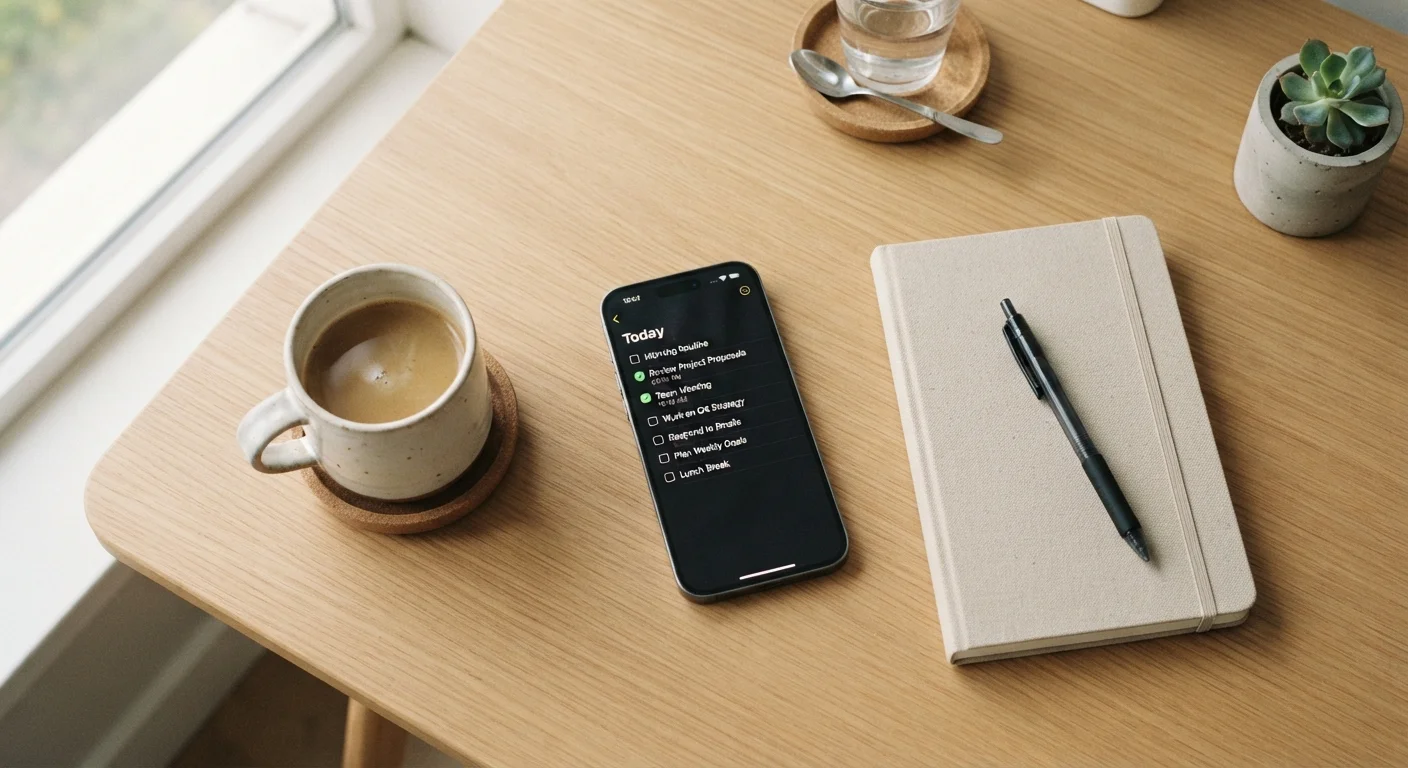
A practical approach: attach the app to something you already do consistently. Check your task list every morning with your first cup of coffee. Review your calendar every Sunday evening. Add to your notes app immediately after a conversation, not an hour later.
Setting a recurring reminder within the app itself is a low-effort way to reinforce the habit early on. Most calendar and task apps let you schedule these in seconds.
If you find yourself using productivity tools to manage a home organization project, our guide to starting a home organization project walks through a similarly step-by-step mindset that pairs well with digital tools.
Common Pitfalls for Beginners
Even with the right app, certain habits undermine progress. These are the most common ones to watch for:
More Apps Don't Mean More Productivity
It can feel productive to research, download, and set up apps - but that activity is not the same as actually getting things done. Each app you add is another system to maintain. Start with one and only expand if you hit a genuine limitation.
- Downloading too many apps at once. Each new app requires mental energy to learn. Stick to one until it feels natural.
- Over-engineering the system. Spending more time organizing your tasks than actually doing them is a common trap. Keep your setup as simple as it can be while still working for you.
- Abandoning an app after a few days. No new habit feels smooth immediately. Give yourself two to three weeks before deciding whether something works.
- Treating the app as a goal in itself. The app is a tool, not an achievement. The measure of success is whether your daily life is running more smoothly - not whether your task list looks impressive.
Productivity tools work best when they reduce friction, not add it. If an app consistently feels like more trouble than it's worth after genuine effort, that's useful information - it means you need a simpler tool, not more willpower.