Key Takeaways
Cloud vs. Local Storage
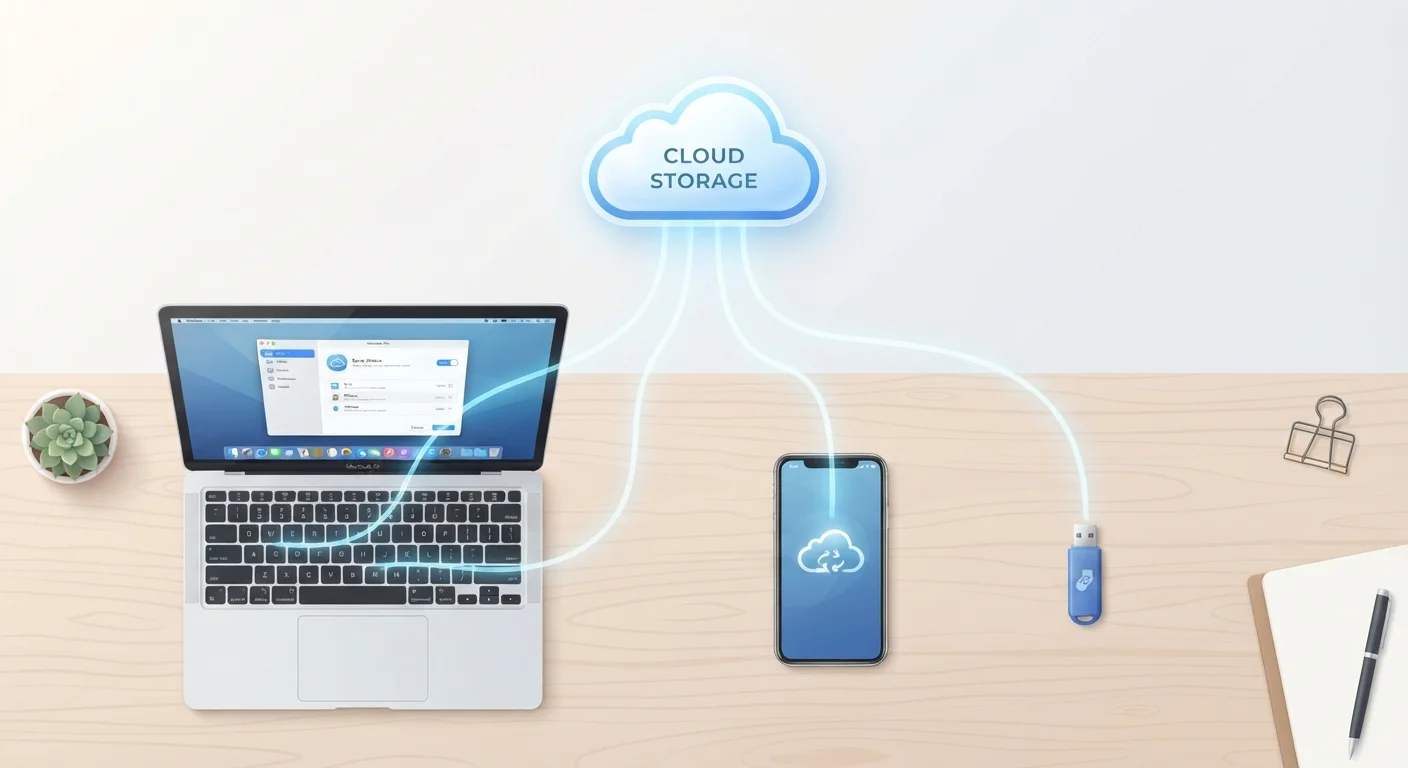
Local storage means your files are saved directly on a physical device - your laptop's hard drive, your phone's internal memory, or an external USB drive. Cloud storage means your files are sent over the internet and kept on servers maintained by a company, accessible from any device with a login. Most people use both without realizing it.
Cloud storage services use large data centers - buildings packed with servers - distributed across multiple geographic locations to keep your files available and redundant.
Where Your Files Actually Live
Every file you create - a photo, a document, a downloaded song - has to live somewhere physical. That might be a tiny chip inside your phone, a spinning disk inside your laptop, or a server sitting in a warehouse hundreds of miles away. Understanding which is which helps you know what happens when your device breaks, your internet goes down, or you try to open a file on a different device.
Think of local storage as a filing cabinet in your own home. It's immediately available, works without any outside help, and is entirely under your control - but if the cabinet is destroyed, so are the files. Cloud storage is more like renting space in a secure off-site archive. You have to travel there (via the internet) to get your files, but they're safe even if something happens at home.
For a deeper look at how the physical storage inside your devices works, the RAM vs. storage explainer covers what your device is actually doing behind the scenes.
64 GB-1 TB
Typical local storage range on modern smartphones
Most consumer smartphones ship with 64 GB to 512 GB of internal storage; some flagship models now offer up to 1 TB.
15 GB
Free cloud storage commonly offered by major providers
Several major cloud storage services offer around 15 GB of free storage before requiring a paid subscription for additional capacity.
2 in 3
Smartphone users who store photos in the cloud
Industry surveys consistently find that roughly two-thirds of smartphone users have some form of cloud photo storage enabled, often without actively choosing to set it up.
The Middle Ground: Synced and Hybrid Storage
Most people don't use purely one or the other - they use a mix. When you take a photo on your phone, it's saved locally first. If you have a service like iCloud or Google Photos turned on, that photo is also copied to cloud servers automatically. Now it exists in two places at once.
This is called syncing - keeping a matching copy in the cloud so your files are available across all your devices. It's useful, but it creates a subtle trap: if you delete a file on one device, that deletion can sync everywhere, removing your only copy. That's why syncing is not the same as a true backup.
For a clear explanation of this important distinction, see our article on syncing versus backing up.
Check Where Your Files Actually Are
Open a file manager or storage settings on your phone or computer and look for labels like 'On My Device' versus 'iCloud' or 'Google Drive.' Many apps store files in the cloud by default without making this obvious. Knowing where each file lives helps you avoid unpleasant surprises when you're offline - or when a subscription lapses.
Practical Trade-Offs to Consider
Neither storage type is objectively better - each suits different situations.
- Local storage is faster to access, works offline, and doesn't require a subscription. Its weakness is that it can be lost with the device.
- Cloud storage is accessible from anywhere with internet, easy to share, and survives device failure. Its weaknesses include relying on a stable connection and trusting a third party with your data.
Privacy is worth factoring in. When your files are stored on a cloud provider's servers, you're subject to that company's terms of service and security practices. If privacy matters to you, look for providers that use end-to-end encryption - a method where only you hold the key to decrypt your files. Our companion piece on online privacy terms explains that and similar concepts in plain language.
Choosing the Right Mix for Your Situation
A practical approach for most people combines both types. Keep files you need frequently or offline on your device's local storage. Use cloud storage as a safety net - and make sure you understand the difference between syncing and actual backup so you're not caught out.
Ask yourself a few questions: What would I lose if this device disappeared today? Can I access what I need if the internet is out? Am I paying for storage I'm not using? Your answers should shape how you divide your files between local and cloud.
The How Devices Work hub is a good starting point if you want to keep building your understanding of the technology you use every day.
This article is for general informational purposes only. Storage capabilities, pricing, and service terms vary by provider and change over time - verify current details directly with any service you consider using.